

.svg)

Folders
Folders in SCOUT are an essential tool for organizing and managing your projects effectively. They enable navigation, simplify project management, and are a prerequisite for utilizing the Radar and Matrix features for analysis.
Creating a new folder is simple. Click the +Add Folder button on your Portfolio page, add a title, and optionally include a description. For more details on folder settings, continue reading the full article.
Additionally, you can create a folder from the Folder dropdown by clicking on the "+" button
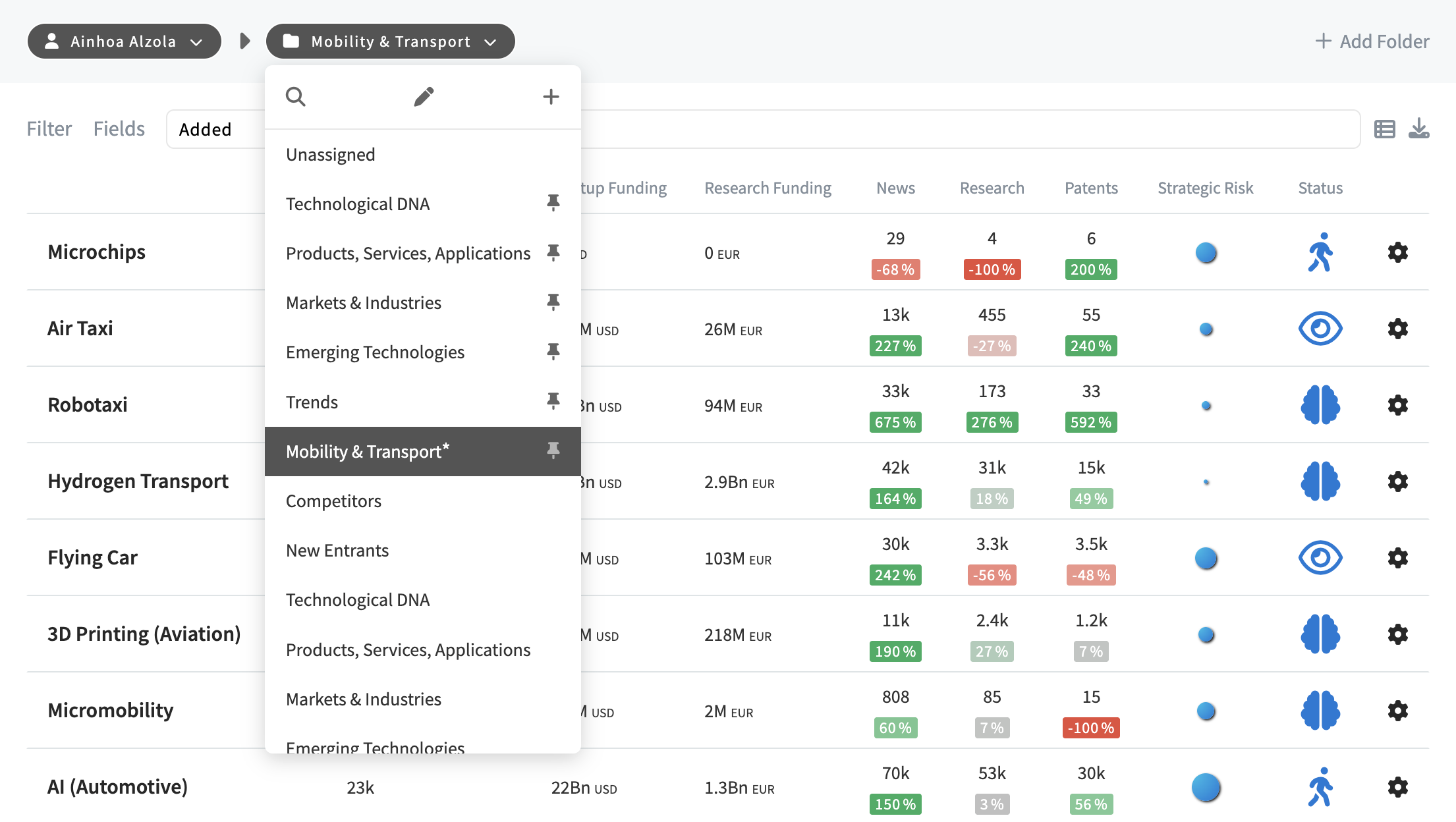
Note: Creating subfolders (folders within folders) is not supported. We recommend using a combination of folders and subpages within your projects to achieve your desired structure.
Folder navigation
- You can access to folders and projects owned by you or the groups you are part of. Just select your user name or the group name in the first dropdown.

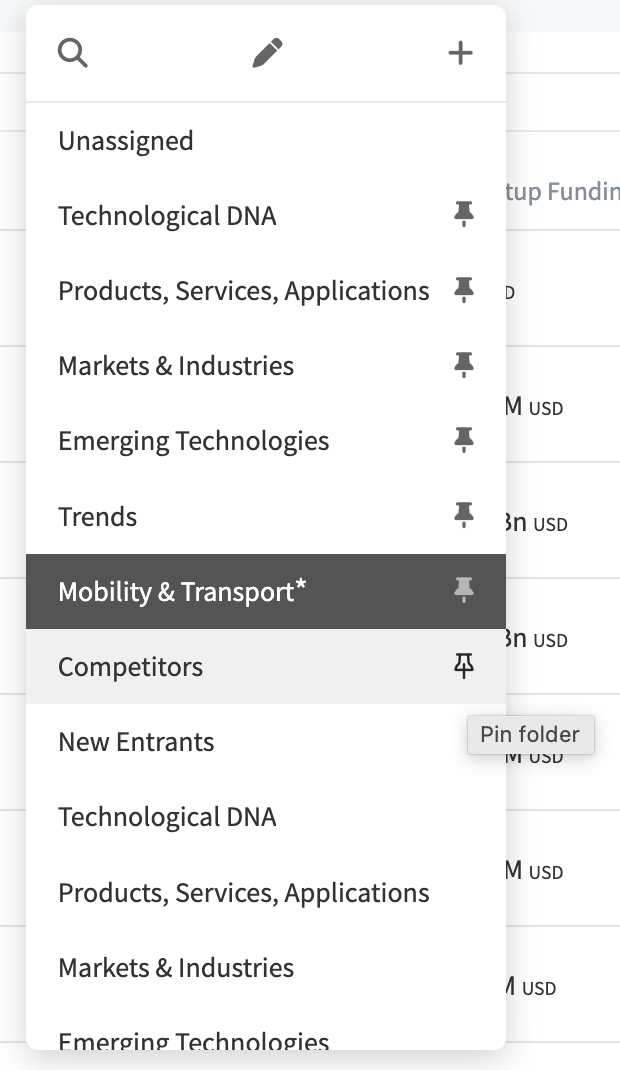
- To move between folders, click on the folder name in the folder dropdown (see first image of this article). If you have many folders, use the magnifying glass to quickly locate a specific folder.
- Pin your folders: Hover over the right side of the folder name to reveal the pin icon. Click the pin icon to pin the folder to the top of the menu.
Folder settings
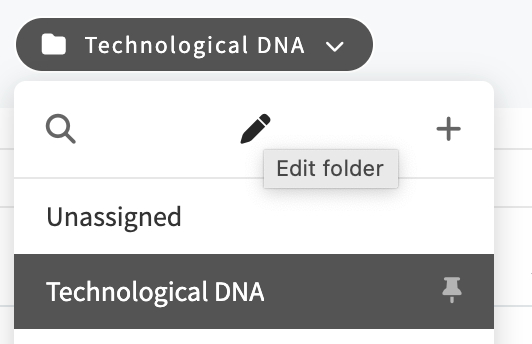
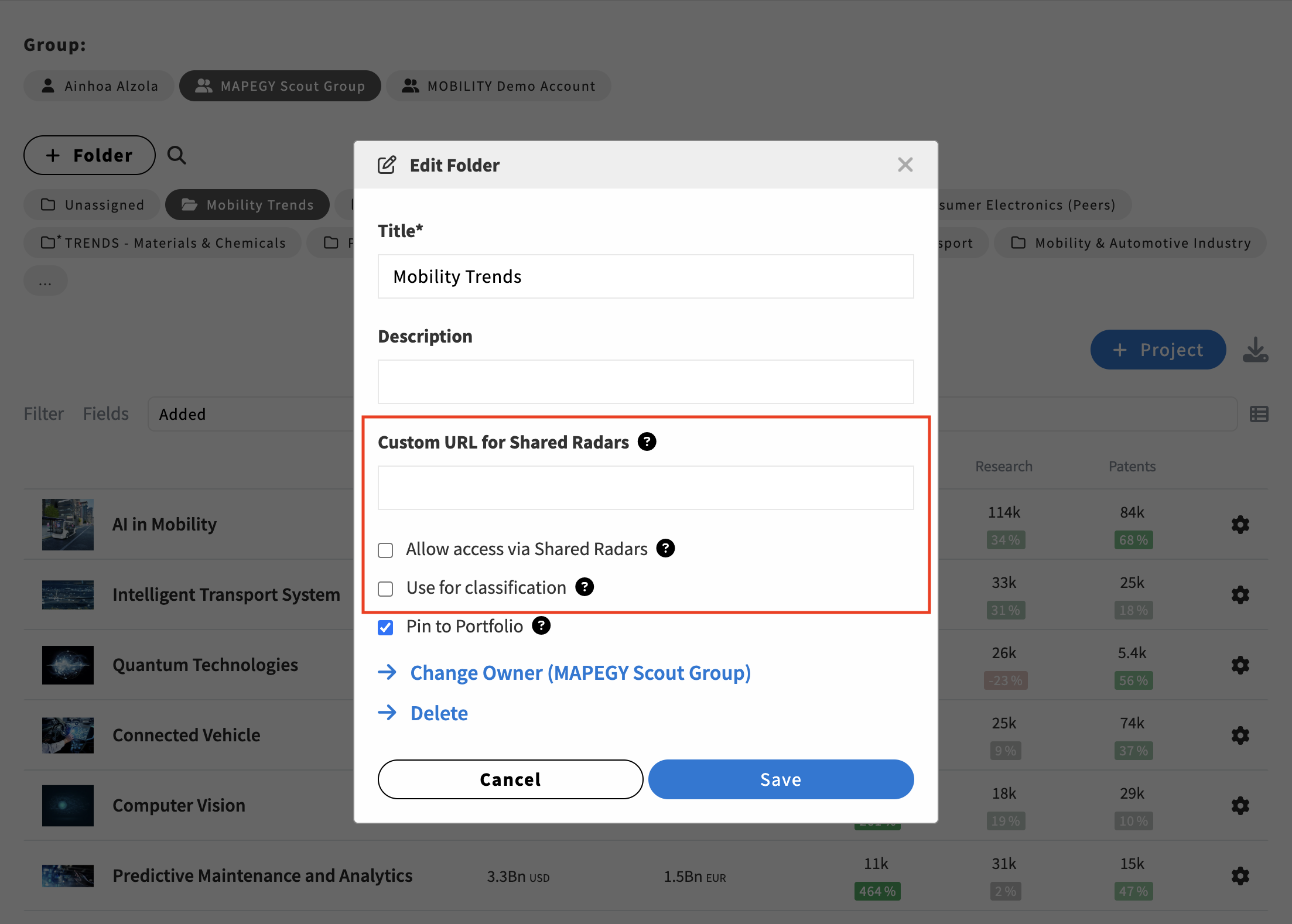
Click on the pen icon in the folders dropdown. This will display your folder settings:
Access via shared Radars
Enable shared radars to provide read access to the projects within the folder when it is selected in the radar configuration.
Be careful when activating this as it could lead to sharing sensitive information.
Custom URL for shared Radars
Additionally, when sharing a Radar, Admins can set a specific URL to redirect users without access rights to projects. The URL must start with https://.
This URL will apply to all projects in this folder.
Custom Classifications
Enable this option to use the folder for custom classifications. A custom panel will appear in Relevant Fields, where each project in the folder corresponds to a topic category.
This category is populated with relevant content to your project and the current query. Check out this article to learn more.